

| IMMEDIATE CUSTOMISED QUOTE |
| RETRAIT EXPRESS & LIVRAISON J+1 |
(from 40€ HT)
Depending on the quantity
Personalized help and advice
Professionals and individuals
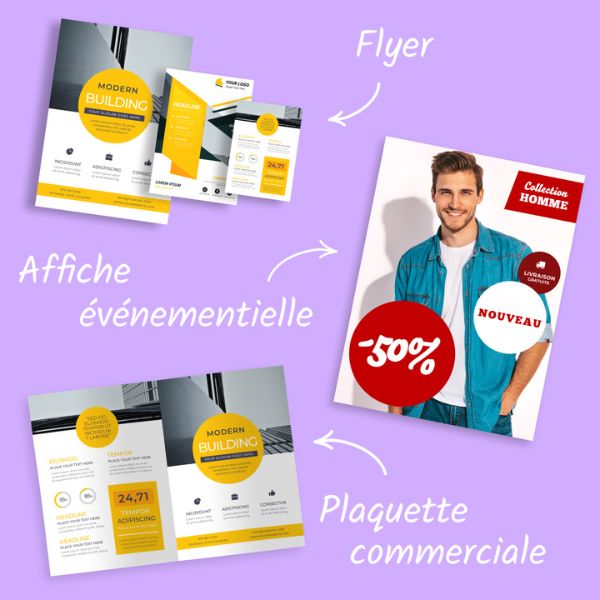
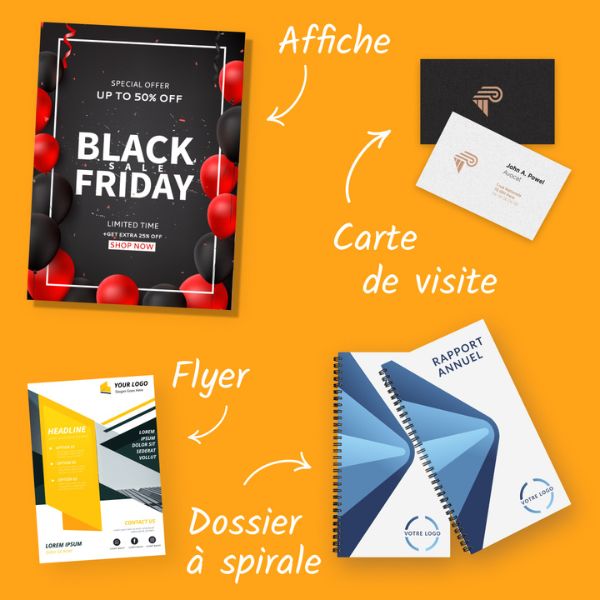
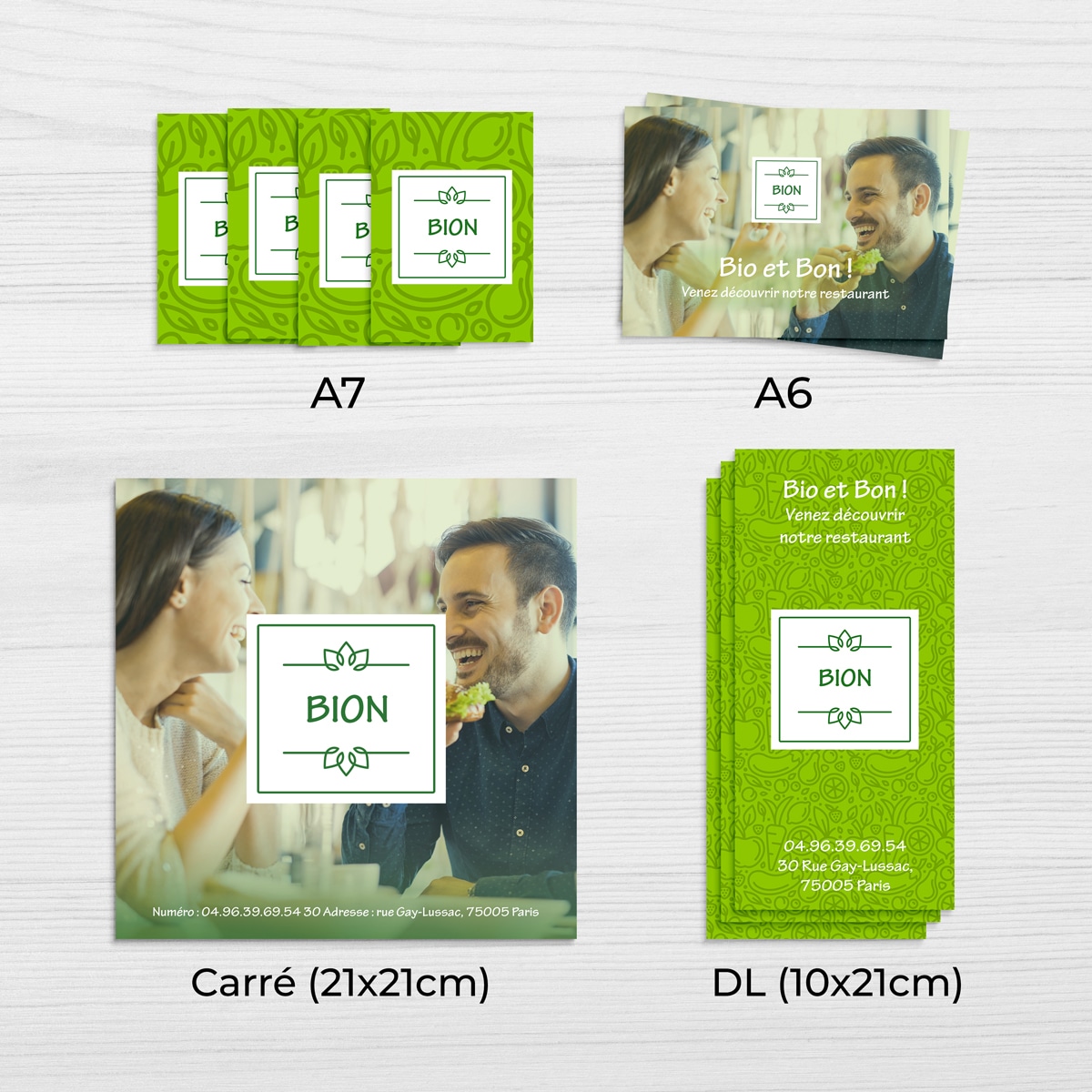
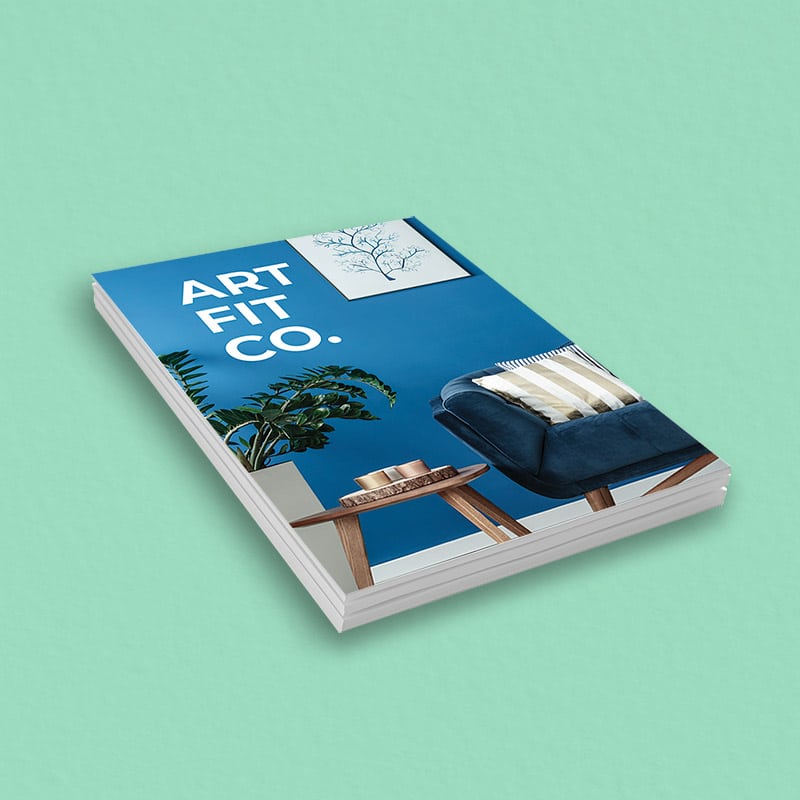
The smallest format of the A series, 105 x 148 mm, has many advantages. As compact as it is economical, the A6 format is ideal for the creation of flyers, leaflets or postcards.
At Copymage, we make it easy for you to print all your media in A6 format.
The smallest format of the A series, 105 x 148 mm, has many advantages. As compact as it is economical, the A6 format is ideal for the creation of flyers, leaflets or postcards.
At Copymage, we make it easy for you to print all your media in A6 format.
Price of your A6 prints
To get a price, please send us a request for a quote using the button below.
100% Satisfaction: your satisfaction is our priority
Free verification of your files
Secure payment: credit cards...
Accepted files
Files in PDF format (recommended), Microsoft Office (.doc, .pub, .ppt..), Adobe (.psd, .indd, .ai..), JPEG, PNG, etc...
Image resolution
300 dpi resolution recommended
Full page printing
To print full page (printing without white borders) : Prepare a file in the format of the finished document + 3 mm minimum bleed all around
Colorimetry
CMYK mode preferred (note that colours vary between screen display and print)
Safety zone
No text or important elements within 5 mm from the cut.
Typography
Minimum size: 5 points Remember to vectorise the fonts for Illustrator or InDesign files Illustrator or InDesign files (Menu Text > Vectorise).
When cutting, it is very difficult to centre a frame with the edges of the card. The result is often disappointing. In order to limit the visual impact of an offset at the time of cutting we recommend a safety margin of at least 4mm between the outside of the thread and the edge of the card.
Here is an illustration of the front and back depending on the positioning and reading direction.
INDESIGN SETTING
When creating your document, make sure you are in Print mode. Put 5 mm in Bleed (More Options Menu > Bleed).
When your document is finished, export it (File menu > Export) in Adobe PDF format (printing) by checking the box for Cuts (Cues and bleeds > Cuts)
PHOTOSHOP ADJUSTMENT
When creating your file, add 1cm (to get 5mm on each edge) to the final size of your document.
Then create markers (View menu > New marker) and enter the horizontal and vertical measurements in millimetres (mm).
The markers will allow you to see a preview of your document as it will look when finished. Be careful to respect a safety margin by not putting any important elements within 5 mm of the markers. To finish, save your document (File>Save as) in Adobe PDF format without changing any of the settings.
ILLUSTRATOR SETTING
Create your document in the format and add 5 mm of bleed (More Options menu > Bleed)
When your document is finished, export it (menu File > Export) in Adobe PDF format (printing) by checking the box for Cuts ( Cues and Bleeds > Cuts)
Types of laminations
Laminating is a way of ennobling paper by applying a thin layer of synthetic film. This film is applied to the paper under heat and increases its thickness and rigidity, while giving it a very attractive appearance. This technique also improves durability and protects the paper over time.
Glossy lamination
A glossy lamination gives depth and impact. It is an option that makes the colours more vivid and eye-catching.
Matte lamination
Matte lamination gives an elegant and more prestigious look than gloss lamination
Peach skin lamination (soft touch)
Similar to matte lamination, it also gives a very soft touch that adds a tactile dimension to the business card.
Selective varnish
This glossy varnish is applied selectively to highlight the important elements of your visual.
3D selective varnish
This technique allows you to highlight elements of your design by selectively applying a thick layer of varnish. By playing with the thickness you can create textures.
TO REMEMBER
In the ISO 216 system used in France and Europe to categorize paper sizes, the A6 format is the smallest format. It is six times smaller than the reference format A0.
The number 6 next to the A means that you have to fold a sheet of A0 paper 6 times to obtain an A6 sheet. Thus, contrary to popular belief, the A6 format has the smallest size while having the highest number in the range.
This reduced format has many advantages when designing communication media: economy, lightness, impact. It is particularly suitable for the creation of flyers, postcards or leaflets.
The small size of the A6 format has several advantages:
The reduced size of the A6 format is particularly suitable for three types of communication media:
The A6 size is the smallest size in the range. It measures 105 x 148 mm.
It is :
In order to combine the advantages of the A6 format and the A5 format, we advise you to create flyers from an A5 sheet which, once folded, will allow you to obtain a closed A6 format flyer.
This option has several advantages:
This makes your flyer complete, impactful and compact.
The A6 format offers a reduced printable area: 105 x 148 mm - not counting the 5 mm neutral zone inside your project in which we advise you not to put any text or important illustrations at the risk of these elements being cut off when cutting your flyers.
However, an A6 flyer is a great communication tool, economical and impactful when it is well designed. To help you in the design of your A6 flyer, we offer you some tips:
At Copymage, we always entrust your printing projects to one of our experts. He or she has a perfect understanding of your expectations and can offer you the best possible support in printing your communication materials in A6 format.
Copymage has the Imprim'Vert label and contributes to protecting the environment.
Our other products
| IMMEDIATE CUSTOMISED QUOTE |
Les commandes en ligne passées entre le 12 et le 18 août seront traitées à partir du 19 août.